
Homepage Search - How to tailor your search bar
There are two ways you can showcase your Service Provider Search on your homepage.
1) On top of the banner like so:
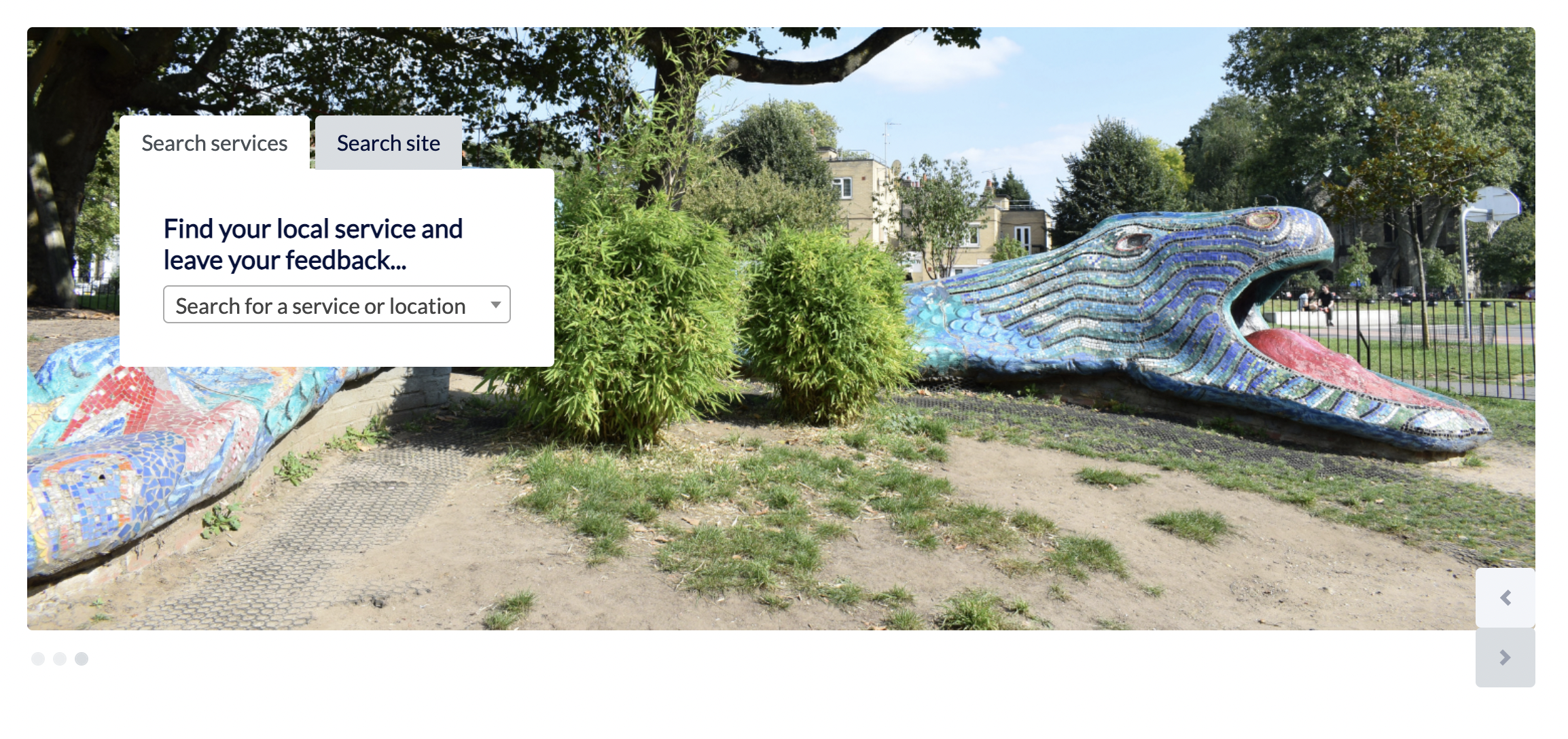
This is controlled in the 'Site Settings' are of the CMS. To access it you need to login to Wordpress, and click the button below on the dashboard:
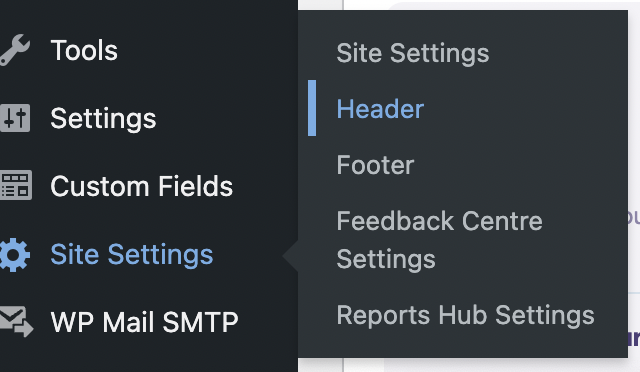
Click Site Settings then click 'Header' this will reveal a new page that looks like this:
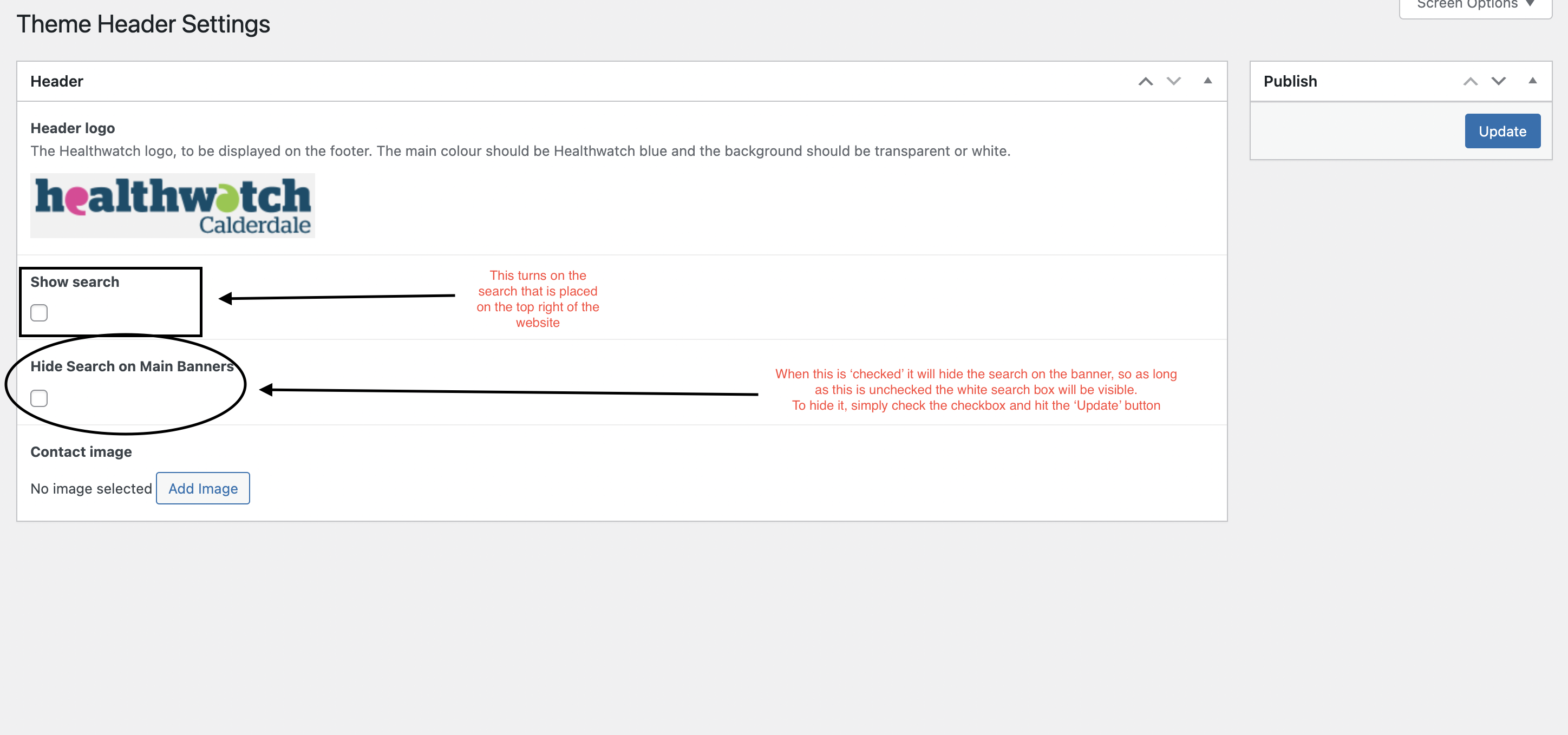
You can control all the header options on this page, including your site logo, search box on the top of the page and adding a contact image. But for now we'll focus on the Search that is shown on the main banner. In the example above, this Search on Main Banner has been turned on so the checkbox hasn't been selected. If the Search Box isn't showing on the main banners on your site, simply head to this page and uncheck that box.
2) In the box underneath the banner like so:
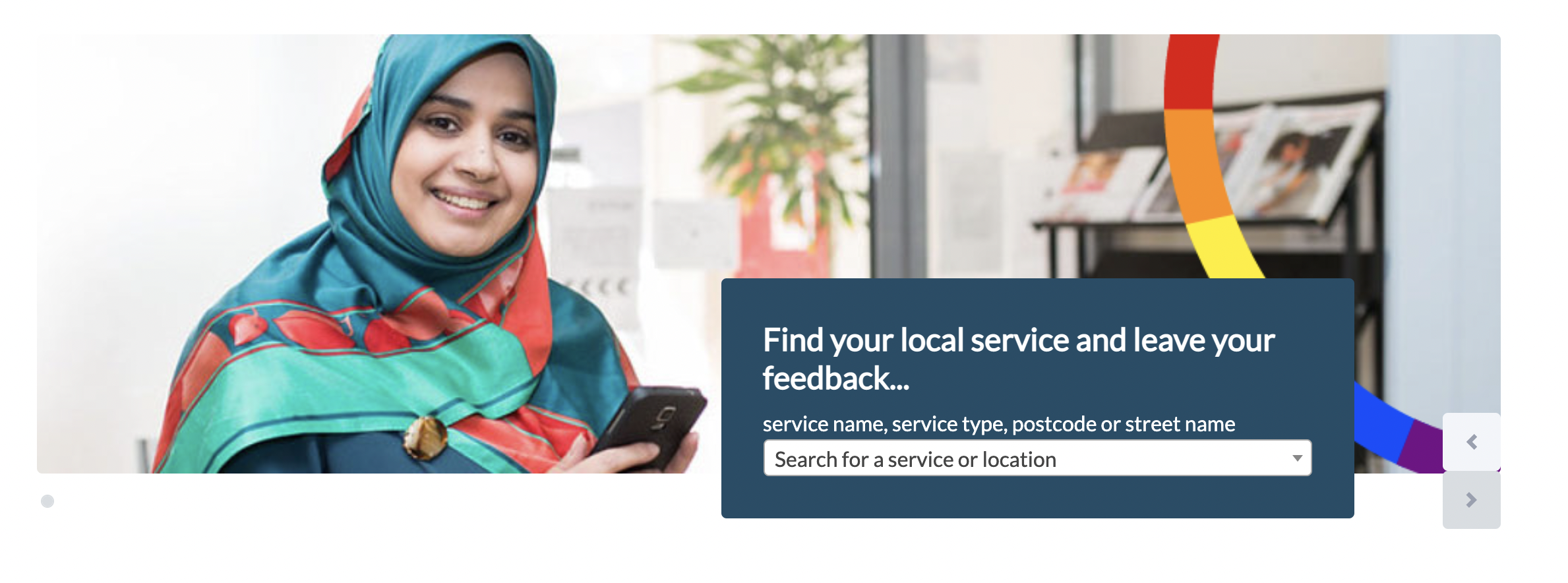
This search is controlled in the homepage builder. But if you wish to display this search, please ensure you've followed the directions above to hide the Search on Main Banners. To access the Homepage Builder, login to Wordpress, head to your homepage and click 'Edit Page'.
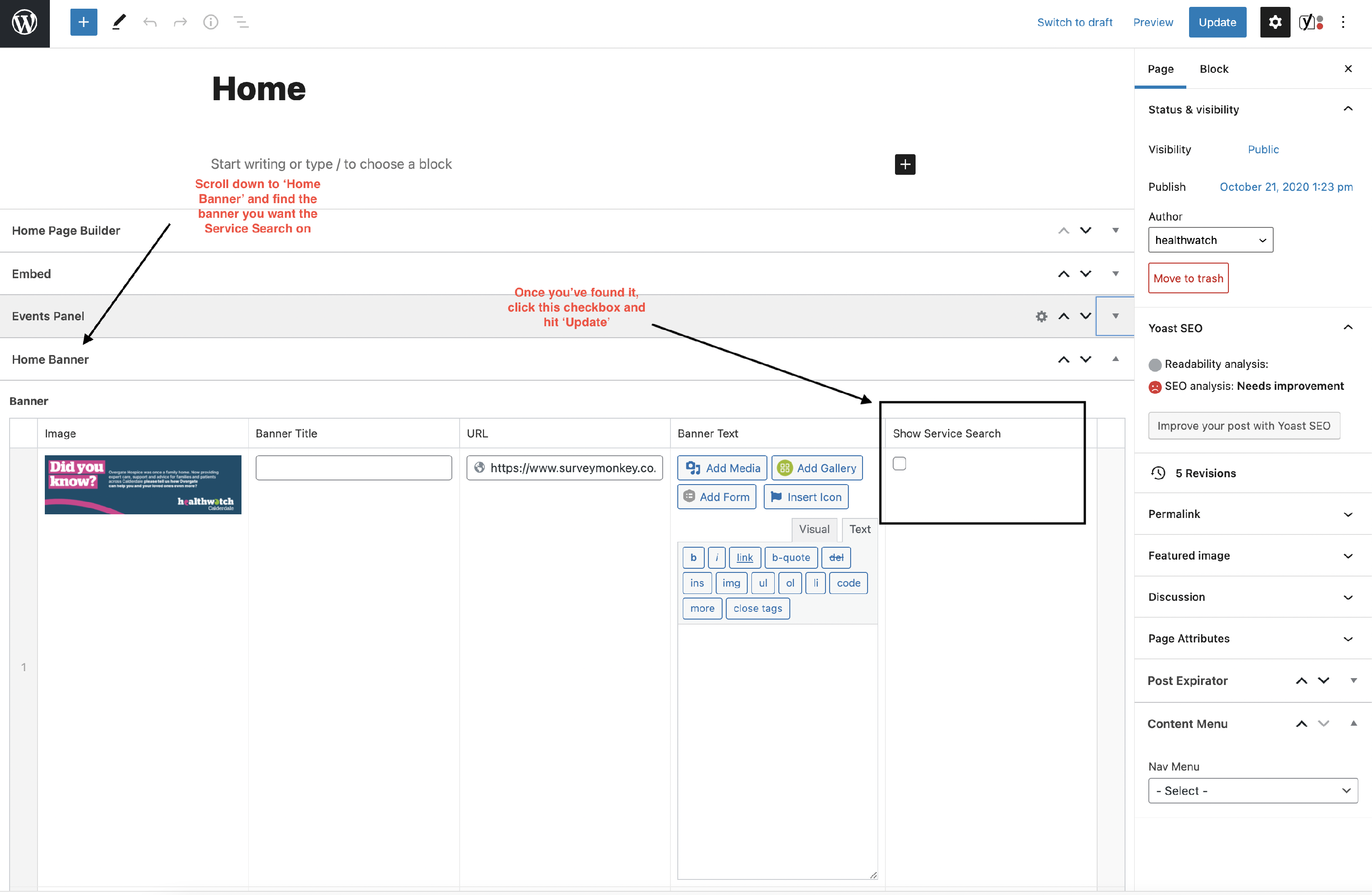
Once you load the Homepage Editor, scroll down to the section that says 'Home Banner', find your banner and click the 'Show Service Search' checkbox. Make sure you hit update and the service search should appear in a blue box on your homepage.