
Adding a user
With your Wordpress website, you have the ability to create new users (as long as you are logged in as a Healthwatch Admin, if you do not have this role assigned to you, please reach out to a colleague that has).
How To Add A New User
Go to your WordPress admin page and log in to your website. If you’re not sure of your password, you can click “Lost Password” to reset it.
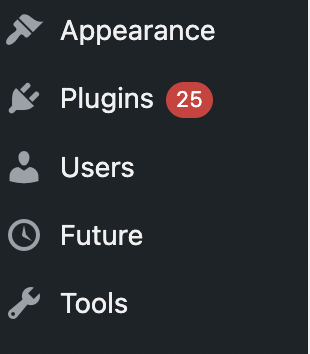
Now that you’re in the WordPress dashboard, click on Users in the left sidebar. Which looks like this:
Towards the top of the screen, click Add New:
 Now you should be on the Add New User screen. Enter a username and email address for your new user. First name, last name, and website are optional.
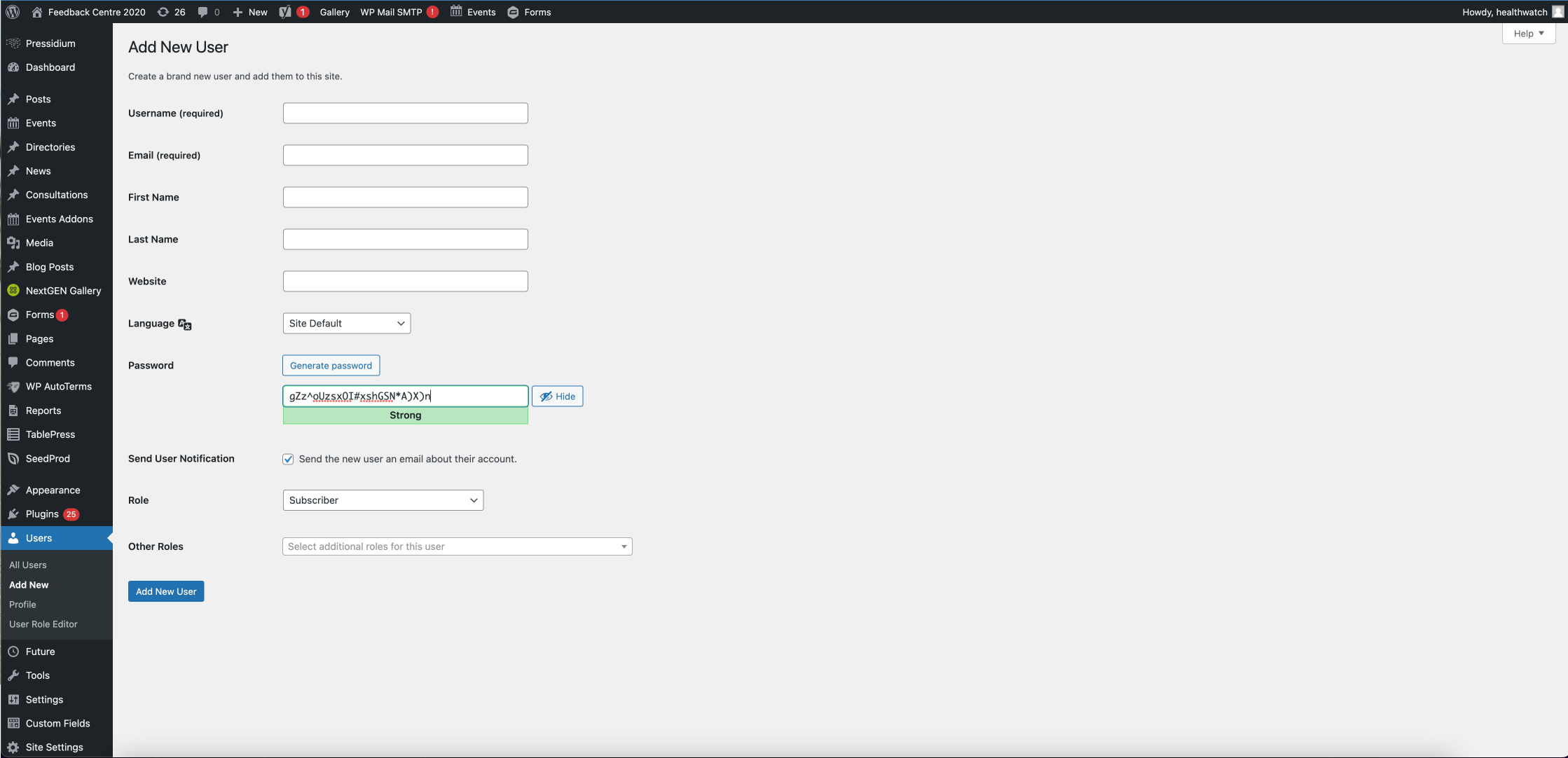
Enter a SECURE password for your new user. You can either use the one that WordPress randomly generates, or create your own. However, it’s important to use a secure password because hackers will try to use your login to compromise your website. Please choose a password with uppercase, lowercase, numbers and symbols.
Keep the Send User Notification checked if you would like the new user to receive an email with their login information.
Choose a Role for your new user. The following roles are available:
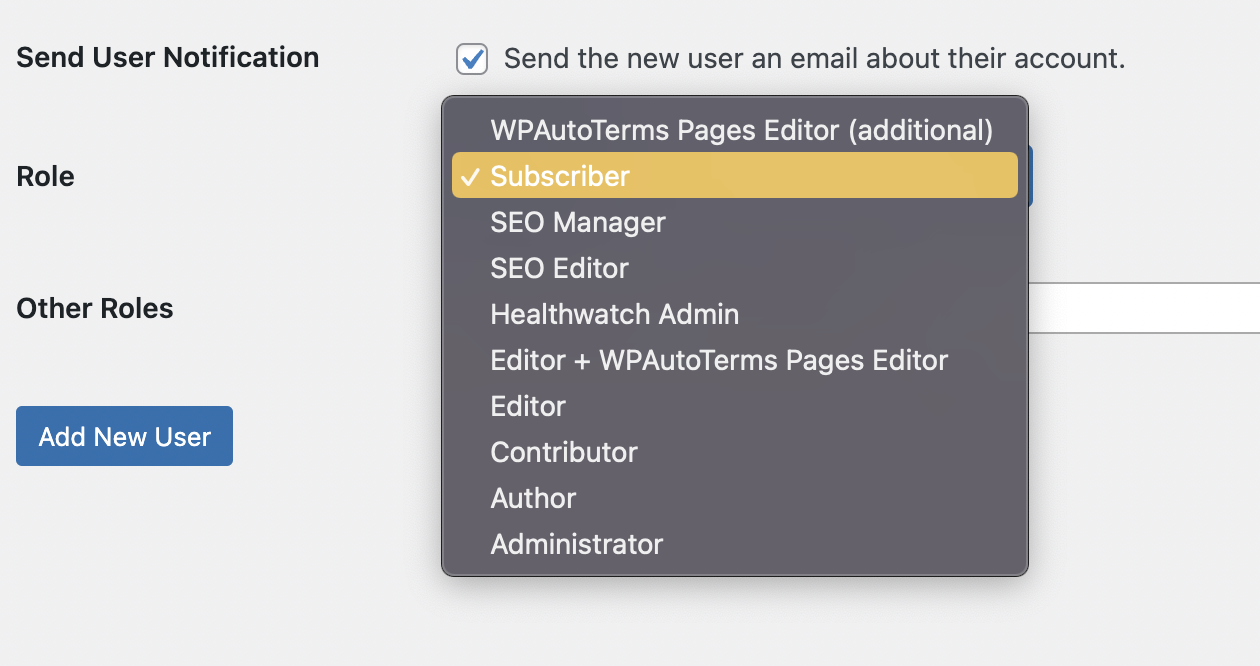
Although - you wont have access to the full administrator, if you want your user to have all the access rights to your website apart from areas that are restricted to White Bear, use 'Healthwatch Admin' the other roles are as follows:
- Editor: somebody who can publish and manage posts including the posts of other users.
- Author: somebody who can publish and manage their own posts.
- Contributor: somebody who can write and manage their own posts but cannot publish them.
- Subscriber: somebody who can only manage their profile.
Once you've chosen your role. Click the Add New User button and you’re all set!